
Easily Manage Your Bills With Accounts Payable
Updated on October 7, 2026 | 3 min. read



Keep all your bills organized in one place, so you know exactly where you stand with your vendors every month.
Let’s say you’re a personal trainer with a growing list of clients and a robust roster of vendors you work with. Chances are, you carry a certain amount of overhead every month: Rent for your studio space, monthly internet bills, maybe even a small business loan.
And every month, you try your best to follow the paper trails and digital breadcrumbs of each vendor. For example, your landlord may only accept checks, or your bank may require electronic payments by a certain date. Long story short, it can be tough staying on top of every payment when your real focus is on your clients.
To help, FreshBooks has Accounts Payable features that keep all your bills organized in one place so you know exactly where you stand with every vendor, every month.
What is Accounts Payable in FreshBooks?
Accounts Payable is an easy way to record and track all your bills for different vendors in one place. This makes it easier to manage your cash flow by tracking how much money you owe at any given time.
Where is Accounts Payable in my account?
Accounts Payable is available on Premium and Select FreshBooks plans. If you’re on one of these plans, you’ll find both the Bills and Vendors features under the Expenses tab in your account. If you’re not on one of these plans, but want Accounts Payable, you can easily and quickly upgrade your plan.
How does Accounts Payable work?
Using Accounts Payable is easy. Just upload a photo of a paper bill to create a digital record, or create a new Bill from scratch and then attach it to a Vendor. Once that Bill is paid, simply record the payment in your account to easily track it.
How do I create a Vendor?
To create a Vendor:
- Log in to your FreshBooks account.
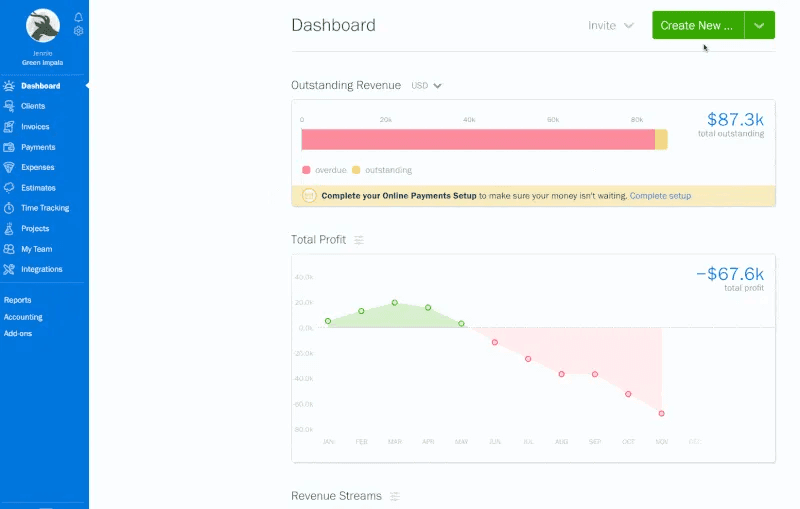
- On the Dashboard, click on the Create New… button, then select Vendor.
- You’ll be taken to a new Vendor screen where you can enter their details.
- Once you’ve filled in their details, click Save to finish the Vendor’s profile.
That’s it, you can now track Bills to that Vendor. Here’s what it looks like in FreshBooks:
How do I create a Bill?
To create a Bill:
- Log in to your FreshBooks account.
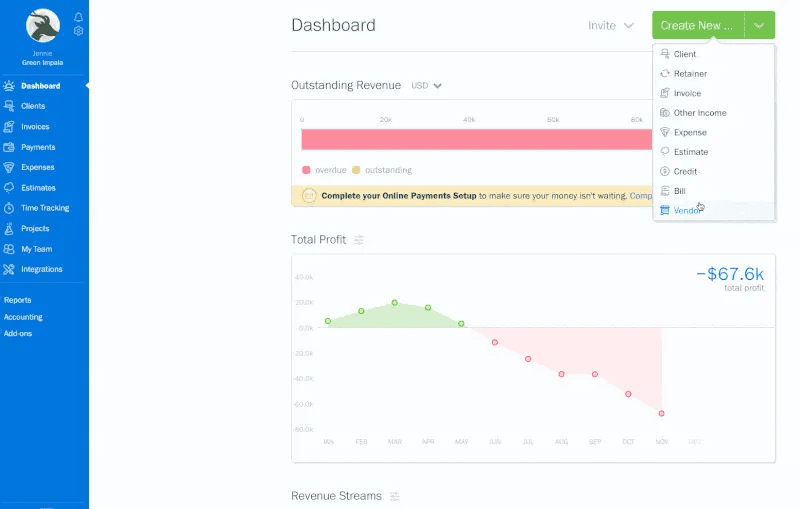
- On the Dashboard, click on the Create New… button, then select Bill.
- Here, you can add a Vendor to the Bill and enter its details.
- When you’re done, click on the Save button to finish.
Similar to invoices, you can assign each line item of the Bill to a specific category, track any taxes, and note when the Bill is due. Here’s what it looks like in FreshBooks:
Why should I use Accounts Payable?
When you’re dealing with multiple vendors using multiple different payment methods, it can be tough to stay on top of every dollar owed. Accounts Payable helps you track outstanding bills, so you never miss a payment. The result? Better relationships with vendors, who will trust you to pay on time.
If you're a FreshBooks user, Bill Pay takes this a step further, letting you upload, schedule, and send vendor payments via ACH or check directly from your FreshBooks account, so your payments and your books stay in sync automatically.
What else can Accounts Payable help me with?
Accounts Payable is also tied to your Cash Flow report and Profit & Loss report. You can run these to see which bills are outstanding and how much sales tax you’ve paid.
Who else has access to Accounts Payable features?
If you have an accountant or bookkeeper that you've invited to your FreshBooks account using the Accountant role, you can grant them access to the Accounts Payable features. This will allow them to create, manage, and edit both Vendors and Bills. They can even add journal entries to track additional details.
Need help getting started?
If you have any questions about organizing your bills using Accounts Payable, contact our Support team.