$1/month for your first year*. Buy now & save


Create Checkout Links. Get Paid Anywhere.

No credit card required. Cancel anytime.




Perfect for Businesses That Love to Get Paid
Products
Services
Organizations
Perfect for Businesses That Love to Get Paid
Advanced Payments: a better virtual terminal
- Securely save client cards on file for future billing.
- Set up automated recurring billing profiles for repeat services.
- Create subscription-based client profiles with predictable, automatic payments.
Set up online payments in a single click
Checkout links: Accept payments…fast!
- Get paid without creating an invoice.
- Accept credit cards and bank transfers online.
- Automatically send receipts and record payments in FreshBooks.
Customers Can Pay From (Almost) Anywhere
- On Your Website - Create a button on your site with a payment link behind it, and drive actions like “Buy Now”.
- In Texts or Emails - Embed the link in an automated text message or send it through a branded email campaign.
- Through Social - Generate a link in seconds and post it on social media or wherever you interact with customers.
Advanced Payments: a better virtual terminal
- Securely save client cards on file for future billing.
- Set up automated recurring billing profiles for repeat services.
- Create subscription-based client profiles with predictable, automatic payments.
Set up online payments in a single click
Checkout links: Accept payments…fast!
- Get paid without creating an invoice.
- Accept credit cards and bank transfers online.
- Automatically send receipts and record payments in FreshBooks.
Customers Can Pay From (Almost) Anywhere
- On Your Website - Create a button on your site with a payment link behind it, and drive actions like “Buy Now”.
- In Texts or Emails - Embed the link in an automated text message or send it through a branded email campaign.
- Through Social - Generate a link in seconds and post it on social media or wherever you interact with customers.



Advanced Payments: a better virtual terminal
- Securely save client cards on file for future billing.
- Set up automated recurring billing profiles for repeat services.
- Create subscription-based client profiles with predictable, automatic payments.
Set up online payments in a single click
Checkout links: Accept payments…fast!
- Get paid without creating an invoice.
- Accept credit cards and bank transfers online.
- Automatically send receipts and record payments in FreshBooks.
Customers Can Pay From (Almost) Anywhere
- On Your Website - Create a button on your site with a payment link behind it, and drive actions like “Buy Now”.
- In Texts or Emails - Embed the link in an automated text message or send it through a branded email campaign.
- Through Social - Generate a link in seconds and post it on social media or wherever you interact with customers.
How Exactly Do Checkout Links Work?
Creating profit and loss statements is easy with the free template from FreshBooks! It can be broken down into 6 simple steps:
Choose a format
First, choose the P&L statement format that is most useful for you and your business’s needs.
Download the template
Next, download your free profit and loss statement template of choice in seconds from the FreshBooks website.
Enter revenue
You’ll be prompted to enter revenue information in the relevant field—keep your financial records on hand for this part.
Frequently Asked Questions
Checkout Links are FreshBooks’ version of payment links – and are an amazing way to collect payments from multiple channels without an invoice. Customers get redirected to an online checkout payment page where they input their info, click submit, and boom – they’re done.
The money is deposited straight into your bank account, and marked as paid in your FreshBooks account. They’re a ridiculously simple, flexible, and powerful way to accept a payment from a customer.
For a more detailed breakdown, check out this support article.
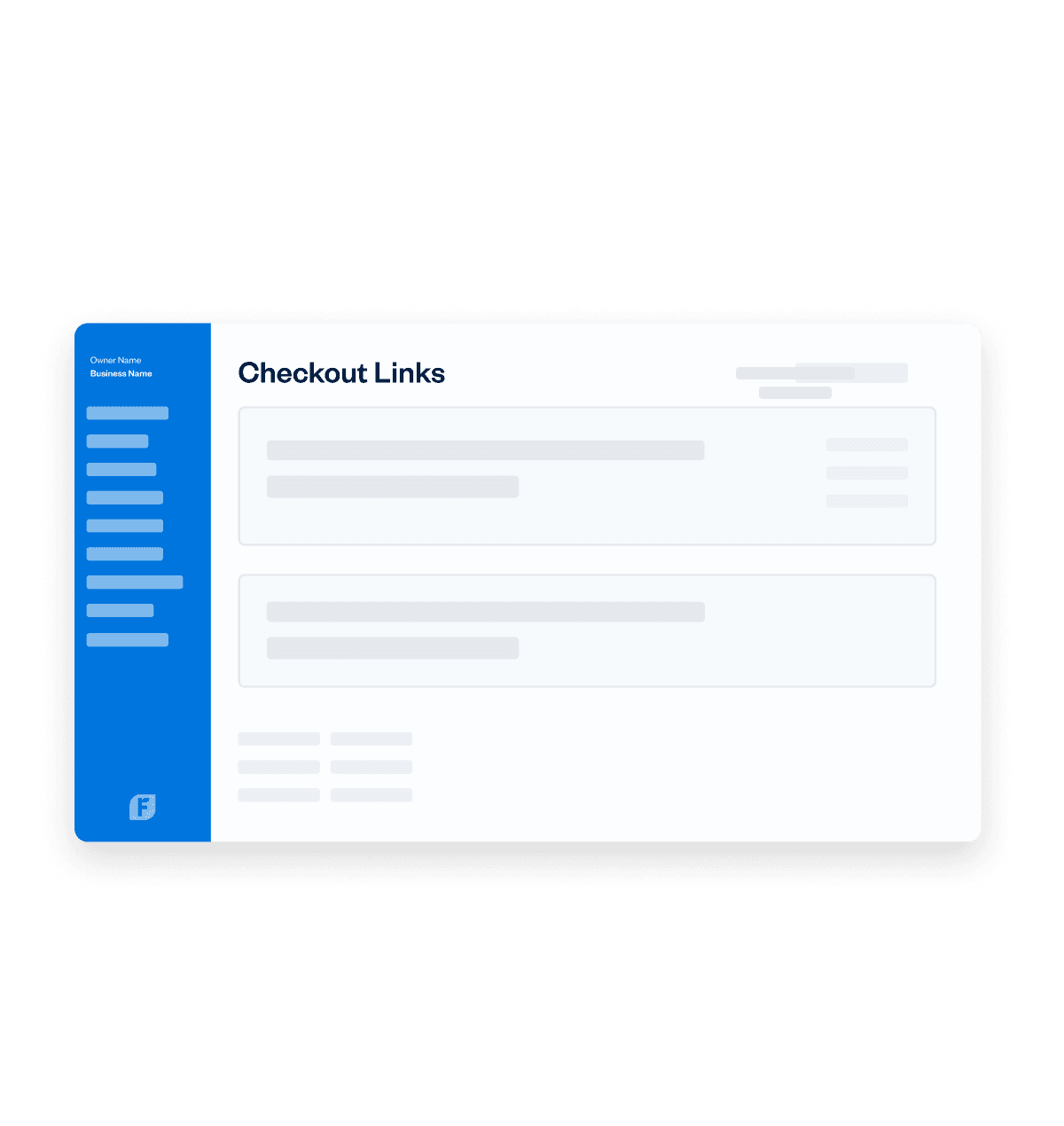
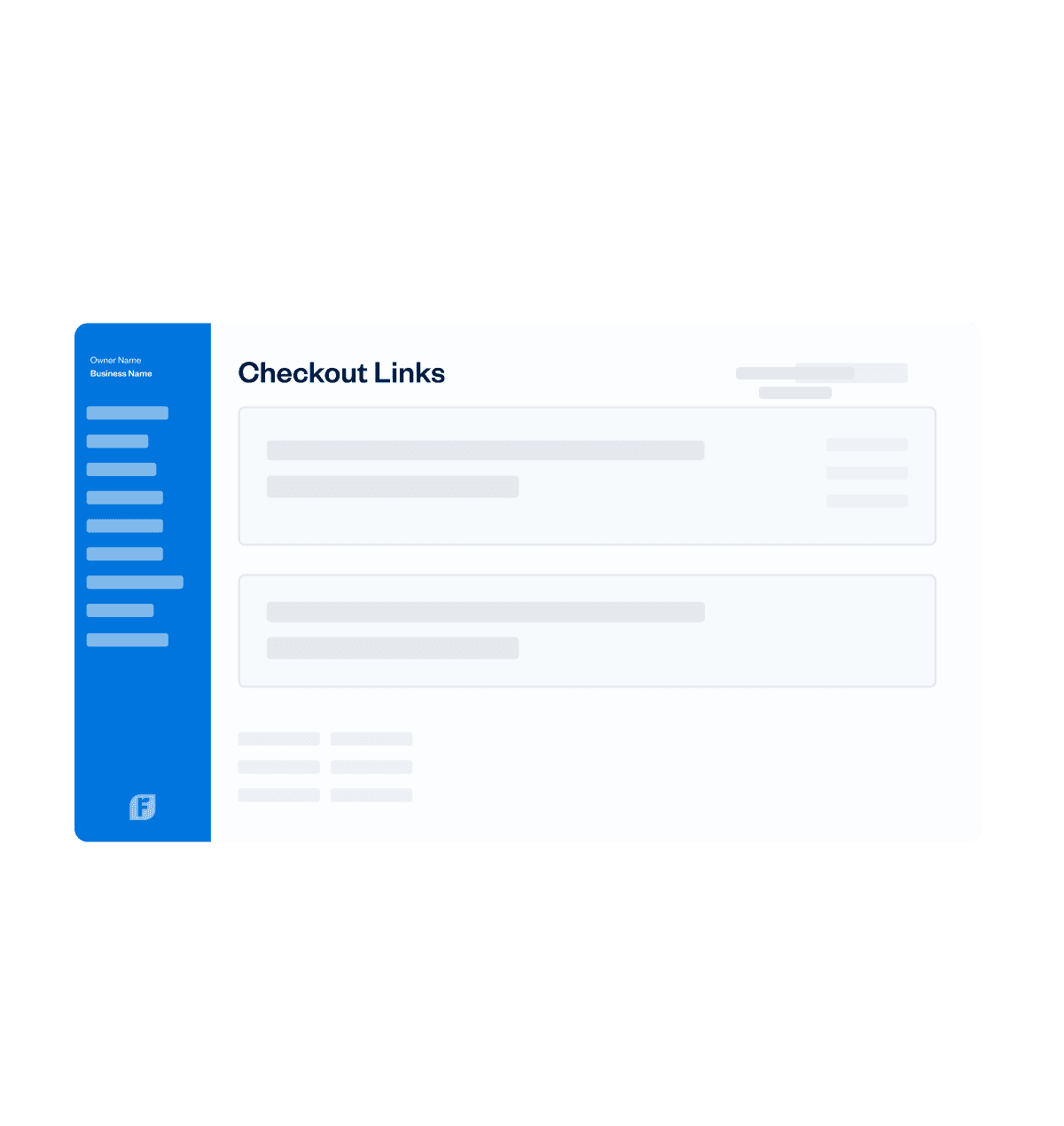
- Navigate to your dashboard and click Payments in the main navigation
- Click the Checkout Links section that appears beneath
- On the Checkout Links page, you just click on the New Checkout Link button
- Fill out all fields that apply – including Online Payments, Collect Shipping Address, and Notifications settings on the right
- Click Done to apply the settings you choose
- And that’s it! FreshBooks will generate a unique, secure payment link/URL that you can accept payments from
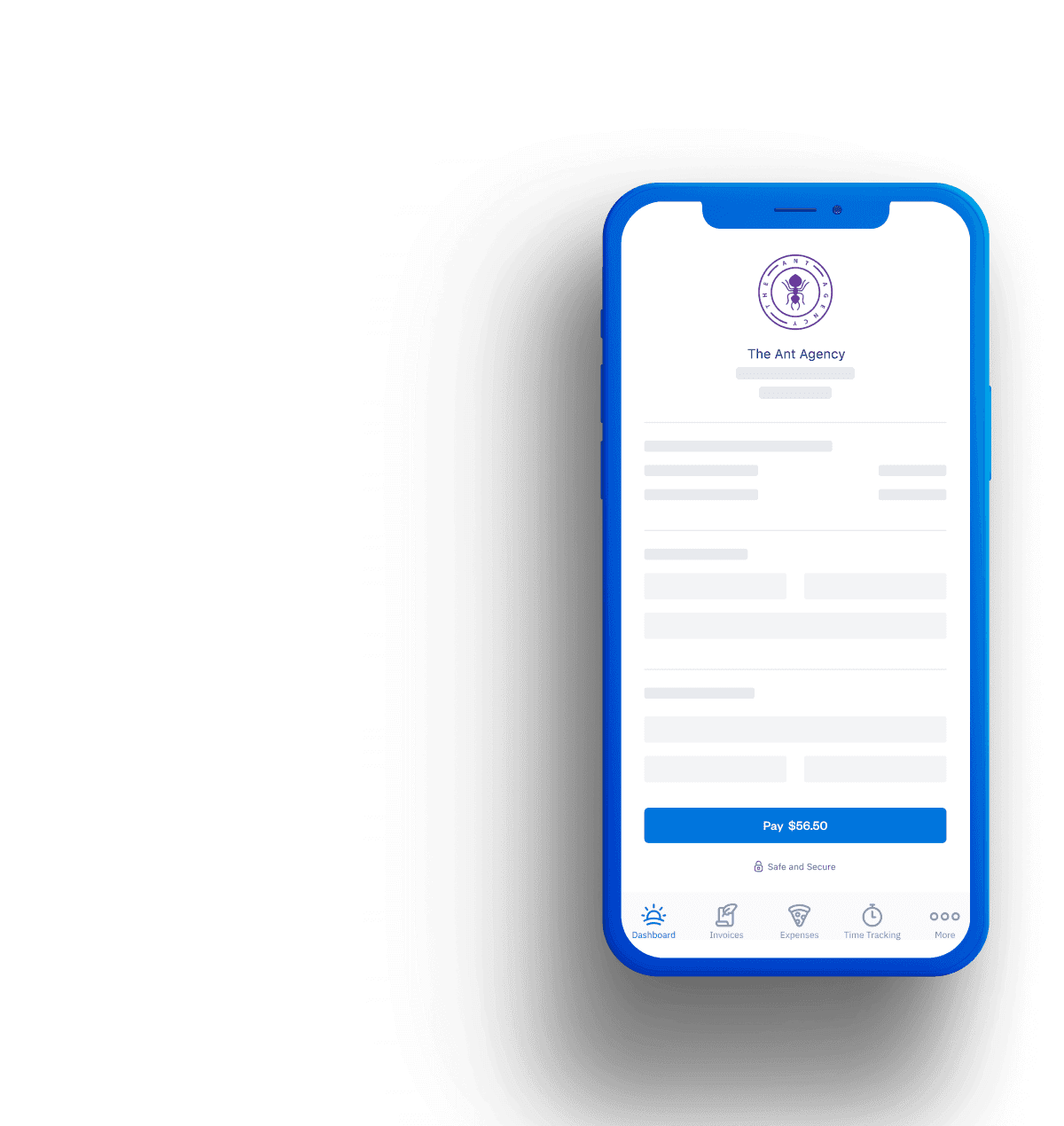
When a Checkout Link is clicked, your customer is presented with an online checkout/payment page. On this page they’re asked to fill out all their payment details and add their contact information (including a shipping address if you requested it).
They then have the option to pay with a credit card or bank transfer using their preferred payment gateway and payment methods (including Visa, Mastercard, and Apple Pay). Once they’re done, a receipt is automatically generated on a checkout page.
Checkout Links are available through FreshBooks Payments (WePay), Stripe, and PayPal. This means you can accept payments from Visa, Mastercard, Discover, AMEX, Apple Pay, debit card payments, and more. These options allow customers to pay by link with their preferred payment provider.
This does not include Google Pay.
Yes. All payment transactions in FreshBooks are handled in accordance with PCI Data Security Standard (PCI DSS) requirements. So go ahead and send payment links knowing your clients are protected!
Nothing! You can send and share Checkout Links (aka payment links) to multiple customers without any additional cost. The link is reusable and can be deactivated whenever you want. Plus, within FreshBooks you can track the transaction amount tied to each link – so you’ll know which payment links are making you money.
Checkout Links are a really useful tool for businesses selling products or services at a fixed-rate. Some examples of where you can use payment links are: Charging consulting fees, selling tickets to your next event, or collecting one time payments.
No! That’s the great part about Checkout Links (aka payment links). Instead of creating multiple invoices for the same product, you can just create one reusable URL.
This allows you to accept payment from customers directly via text messages, social media platforms, or your website – all from one convenient payment link.
When a new client of yours pays by a Checkout Link (aka a payment link), they’ll automatically be added as a new or existing Client within your FreshBooks account based on the email address used. This makes it easier to track and manage your money, and means less time spent adding new client profiles every time you get paid.
